Showing posts with label iPad. Show all posts

Thursday, 11 December 2014

December 12th, 2014 - Holiday Links

Happy Snowy Friday everyone!!

This week, I have a couple holiday suggestions for you, which may be useful in your classroom or as links you can send home to parents to keep students learning over the holidays.

First, NORAD Tracks Santa (http://www.noradsanta.org - also available
as an app for iPhone and iPad).  The North American Aerospace Defense Command has set up Santa’s sleigh with a radar system so they are able to track him as he travels around the world making his deliveries.  This is great fun for students to watch as he travels all the countries of the world and there are even some videos of him visiting important landmarks.  Until he begins his journey, the website lets you watch the Big Countdown, play games and learn more about Santa. 

Christmas Around The World.  (http://www.whychristmas.com/)  This website lets students explore a variety of countries from around the world and view videos and descriptions of their holiday celebrations and traditions.  There are explanations of the customs and symbols of this time.

New Year’s Traditions Around the World (http://www.fathertimes.net/traditions.htm). This website contains brief descriptions of New Year’s traditions from countries around the world as well as how to say ‘Happy New Year’ in many different languages.   What a great way to remember that the world is a much larger space that what we interact with on a day-to-day basis. 


Finally, a reminder that our very own UG2GO has a link to LEARN 360, which has a multitude of holiday videos for both educational and entertainment purposes. A simple search of holiday and the appropriate grade level returns various movies including ‘Holiday Facts And Fun’ for Kwanzaa, Hanukkah, and Multicultural Christmas.  Other videos include The Polar Express, The Nutcracker and The Night Before Christmas.

Have a great weekend!

                                                       Cheers,
                                                       Stace


Friday, 28 November 2014

November 28th - Quick and Easy with QR Codes

Happy Friday everyone,

Recently, during our daily five rotations my students have been having difficulty accessing (and staying on) the webpages I have assigned for ‘Listen to Reading’.
  I often set up the iPad on the Tumblebooks, or other website I wish to have them choose a story to listen to, and once the story is over, they are unaware of how to return to this page to access another book.  As a result, I have begun utilizing QR codes to assist students in accessing the webpages I would like them using.

These QR, or Quick Response codes are popping up all over the grocery and retail stores and now they are making their way into education as well.  They are a type of bar code which allows a ‘reader’ to link to related information in the form of a website.    By installing an app with a QR scanner/generator (such as ‘Qrafter – QR Code and Barcode Reader and Generator’ - free), teachers can create their own codes and have students scan them to access websites quickly and easily.   

By visiting a QR code generator website (http://www.qr-code-generator.com/) and entering the web address of the page I would like ‘coded’, a unique QR code is created which you can download and paste into a document.  Once the document has been printed out, students simply scan the code with the iPad and it takes them right to the page I want them to be on quickly and easily – and with out interrupting the conferences I am having with students.

With December right around the corner, I have decided to begin celebrating the holidays early with a draw for a $25 LCBO or Tim Hortons gift card! To enter simply click on the following link and enter your email address. http://goo.gl/7tzqx4 I will draw a random name on Thursday, December 4th and announce the winner in next week’s Tech Tidbits.

Good Luck and have a great week!
Stace 

Thursday, 19 June 2014

June 13, 2014 – Story Telling Made Easy

Happy Friday the thirteenth!!

Today I’d like to share a story making and presentation app that offers many 
options and can quickly turn your own voice recordings into animated presentations with just a few taps.  Adobe Voice is a free story making app that is simple to use and walks you through the process step by step to help create animated videos in minutes.


Once the app is downloaded, you can choose from the pre-made templates such as ‘tell what happened’, ‘show and tell’ or ‘explain something’ or take creative license into your own hands and choose to ‘make up my own’.  Once you have chosen your theme then simply
tap and hold the microphone button while you speak into the iPad to record single sentence snippets of your story.  Next, you can match the spoken words with one of the over 25000 images/icons included in the app or choose to use one of your own from the iPad, Facebook, or simply take one with the iPad camera.  Adobe Voice will add in the animation and background music turning your simple story into a work of art. 

I particularly liked the prompts at the bottom of the page which shows the basic steps in story creating (Who, when and where, this happened, how it ended, etc.) There are options to add text to your story, change the layout of the images, and add your own choice of music or even background themes and colours.  Finally, make your story viewable by the public or keep it private and share your story with others via email, Facebook, twitter or share by message. 

Cheers,

Stace

Thursday, 29 May 2014

May 30, 2014 - The New DIY Lego Movie

In 1998 this colourful and creative toy was one of the original inductees
into the National Toy Hall of Fame and for generations Lego bricks have been a fun way to entertain and share one’s imaginative ideas.  Now these versatile and engaging Lego bricks have now gone techie!  Lego Movie Maker is a free iPad app that lets students create stop motion movies quickly and easily using Lego models.

Once the app (Lego Movie Maker) is downloaded you are ready to begin snapping photos of your figures and creating your movie.  You can
add or delete frames within the movie in addition to including title frames, sound effects, text overlays and even include colour filters to the camera for special effects.  Once completed movies can be uploaded to YouTube or saved to your iPad.

The app is very user friendly and creates fun and will allow students to explore the art of movie making while expressing their creativity.  Provide your students with a topic and watch their imagination shine!

Past Tech Tidbits posts can be found on the blog at http://techtidbitz.blogspot.ca and if you have an idea for a future blog topic, please feel free to pass it along to me.

Cheers,
Stace


Friday, 28 March 2014

iBet You May Not Know These Tricks

Happy Friday everyone!!

This week I have chosen share a few tips and tricks for the iPad that you may or may not be aware of…

Splitting the keyboard

If you're holding your iPad with both hands, you know how hard it is to thumb type in either the portrait or landscape view. The good news is that then you can split the keyboard to make typing easier.  Touch and hold the "Keyboard" key, to bring it up onto the screen then use two fingers to ‘unpinch’ the keyboard to split it, and pinch to merge it (often this is best performed by placing both thumbs on the ‘g’ and ‘h’ keys and pulling them back towards  the outside of the screen or squeezing them back together).

Caps lock
To type a single capital letter on the iPad keyboard you need to tap the left or right shift key, then the letter, however typing multiple capital letters can be frustrating.  To type a whole word in Caps turn on the caps lock by double taping on either shift key.  Double tap again to turn off caps lock.

Take a photo of what is on the screen (“Screenshot”)
You can take a photo of the image on your iPad by pressing Home and then the Sleep/Wake button at the top of the iPad. The screen will flash and you'll hear a click, indicating that the photo has been taken. Your images are automatically saved in your Photo gallery, where they can be viewed, emailed or used in iPad apps.

Contractions Simplified
iPad’s intuitive word suggestions can automatically include a contraction for you quickly and easily.  By repeating the last letter of the word, it will add in the apostrophe (i.e. welll – we’ll) and complete the word for you when  you tap the space after the word.  

Restoring Deleted Apps
If you accidentally delete an app, and wish to retrieve it you may do so by following these instructions. Visit the app store on your iPad and tap on purchased at the bottom of the page.  This will display all of the apps on your iPad.  By tapping on the ‘not on this iPad’ box at the top, it will display all of the apps which are not synced with the iPad.  Simply find the one you want and tap on the cloud symbol to download it.

Hidden keys on the keyboard
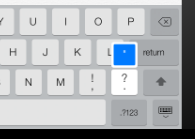
Rather than tapping on the iPad's second keyboard screen to enter a quotation mark or apostrophe, you can simply enable some hidden keys.  By tapping and hold over the ? key and a quotation symbol will appears above the key.  You can select it by moving your finger upwards. Likewise, you can tap and hold the ! key to show the hidden ‘ key – just slide your finger up to access it.

Change your signature
The default email signature on the iPad says, ―Sent from my iPad however if you wish to change it to something more personal merely go into Settings and tap on Mail, Contacts, Calendars. Find Signature in the fourth section down and type whatever you wish.

Tap to the Top
Scrolling back to the top of a lengthy list of twitter messages or website you have been reading can often take many, many swipes up the screen of the iPad.  Instead tap the title bar at the top of the page and the iPad will jump to the top of the page for you – in one quick tap.

I hope these are helpful in making your iPad practice more user friendly.  If you have any questions or suggestions for future tech tips, please feel free to email or message me. Past Tech Tidbits posts can be found on the blog at http://techtidbitz.blogspot.ca

Cheers,
Stace


Friday, 17 January 2014

January 17, 2014 – A Grand ‘Slam’ for Technology

Hello Everyone!

This week I have chosen to feature a fun website which offers brief videos and tutorials introducing educational apps, websites, tools and programs to use with your students. Hosted by Tanya Avrith and Holly Clark, Eduslam (http://eduslam.me/) interviews educators from around the world and explains not only how to use the tools, but how to integrate them into your classroom.  With exciting topics such as ‘Digital Portfolios in the Primary Classroom’, ‘The Power of Blogging’ and ‘Explain Everything and Evernote as a Solution to Shared iPads’, EduSlam has something for everyone and more videos are being added every week. 

By clicking on the website you will find the ‘slams’ sorted into categories such as iPad, Elementary level and Social Media.  Simply choose an interesting tool which you would like to find out more about, and within the brief 5 minute video you will learn everything you need to know about the tool: where to find it, to how to use it in the classroom and ways to link to the curriculum.  In addition, all of the educators who are interviewed (including the hosts) share their twitter handles so you can begin to follow them on Twitter.  What a great way to build your online PLN!

Eduslam.me is a great way to find out about new and upcoming technology tools and apps without feeling self-conscious about your ‘tech-ability’.  You can watch the videos again and again until you feel comfortable using the tool with your students.

Past Tech Tidbits posts can be found on the blog at http://techtidbitz.blogspot.ca and if you have an idea for a future blog topic, please feel free to pass it along to me.

Cheers,
Stace

Friday, 13 December 2013

December 13, 2013 – 'Appy Holidays to You'

Happy Friday the Thirteenth everyone!!

This week I have chosen to pass along a few iPad apps which I have found to be beneficial for staff and students in the classroom.  I hope that you can find something of interest here for you...


ShowMe – Free  
I have found this app to be terrific for students who have limited written output and could benefit from verbal assessment and evaluation. Here students are able to capture an image of work they have done with manipulatives, a drawing, or simply use the whiteboard feature to write their name.  Next they record themselves discussing what they have done or responding to test questions, etc.  Teachers can then listen and assess the students learning from the iPad file or upload the audio files to the ShowMe website and listen to them directly from their computers. Additionally these files can be further downloaded and stored on the computer for instructors to access later (i.e. for parent conferences or to review at a later time).  Although it sounds like several steps, the process is quite intuitive and allows the teacher to have direct record of the student’s achievement and learning without requiring written work.

SnowDrift – Free
This is a fun, wintry app which allows student to practice their spelling or fine motor skills in a fun and engaging way.   When in the draw mode, you write on the screen and cause the snowflakes to swirl around the letters.  Shake the iPad to erase or use the eraser function in the tool bar.   In the play mode, (snowflake icon in the toolbar) your written words are recreated with the falling snowflakes.  Turn the device to have the snow fall in a different direction, or swipe your finger on the screen to cause the snow to be swirled away. Use the email icon to send your snow drawings and words to someone else. This app is also available as an online game at the web address http://snwdrft.com/   

10 Frame Fill – Free
Ten Frame Fill is a great app to help students practice recognizing additive ‘10 Families’ by completing 10 frames.  To begin tap the new frame button and a set of blue chips are placed in the ten frame.  Students are asked to determine how many more will be needed to fill the 10-frame.  Drag the yellow chips to help determine the answer, and then choose your answer from the numbers offered along the side of the screen.  Additional options include being able to have the frame fill sequentially or randomly, show number sentences and the length of wait time before providing feedback to the student. 

World Map for iPad – Free 
This app for the iPad lets you quickly share with students where various countries are located in the world.  Additionally, it allows you to view the time zones around the world and is able to be viewed Offline!  So if you are having difficulties with the wifi in your class, you can download the app when you are connected and then be able to access the maps whenever and wherever you happen to be.


Google Drive – Free
Once you to sign into your Google account with this app, you have access to all of your Google documents, spreadsheets and folders.   It also allows you to create documents and spreadsheets while you are on the go and have them available to you from laptops or Chromebooks at a later time.  One of the best features which is available on this app is the ability to utilize the iPad camera to instantly upload images to your Google Drive - a great option for recording student work and saving it for future reference.

These are only a few of the super apps which are available for use in the classroom and provide teachers with new and innovative ways to engage and support student learning.  If there are any apps which you have found that you feel would benefit other teachers, please feel free to share and I would be happy to pass them along.  Past Tech Tidbits posts can be found on the blog at

Thanks and I hope everyone has a safe and relaxing winter break!

Cheers,
Stace