Friday, 21 June 2013

June 21, 2013 – Technology is ‘Child’s Play’

Happy Summer Everyone!! 

As June is drawing to a close and school is about to take a hiatus for the summer months, so too will the Tech Tidbits Newsletter and Blog.  I have truly enjoyed writing the weekly tech tips and look forward to starting up again in the fall with many more new and interesting ideas.  Until then, I have one additional thought for you to take with you over the summer months - Technology is ‘Child’s Play’.  Earlier this week, I was speaking with a colleague about a recent visit with her granddaughter, who is just over two years old.  She was amazed to watch her adeptly maneuver the toy she was playing with.  Later she found out that the toy which had kept her interest for such a long time was in fact a smartphone.  This is just one example of the fearlessness and curiosity which takes over when children are given the opportunity to experiment with technology.  Over the summer months I challenge you to play with some form of technology.  Whether it is a tablet, a new app, the UGCloud or some other form of technology let your inner child out to play and explore. 

There are some fantastic opportunities to learn about utilizing technology in the classroom coming up and I encourage you to take advantage of some of these wonderful events.  The UGDSB Summer Institute will be held at Elora Public School on July 3rd and 4th and offers some exciting sessions on the UGCloud and Technology Fun.  You can sign up on PD Place.   In September, the board will be facilitating a series of online, face-to-face and afterschool workshops to help staff with introducing a ‘Bring Your Own Device (BYOD) Program’ to your school.  Ask your administration for details if you are interested in attending.  Also, the Educational Computing Organization of Ontario will be having their Annual Conference, ‘Bring IT Together’, in Niagara Falls on October 23rd, 24th and 25th.  With over 200 speakers, numerous vendors and fantastic key notes, you are certain to learn some new tools to use in your classroom.  More information is available at http://bringittogether.ca/ 

Finally, thank you so much for participating in the weekly newsletter and blog over the past few months!  I never imagined it would gain the interest it has, and I look forward to connecting with you again in the fall.  Until then, if there is a topic you would like to revisit or a new technique you would like to try, all of my previous posts are available online at http://techtidbitz.blogspot.ca/ .  You can leave a comment or search out information on previous posts. 

Thanks again and have a very relaxing and playful summer,
Stace

Thursday, 13 June 2013

June 14, 2013 - Skywriting (Documents in the Cloud)

Happy Sunny June Friday Everyone!

I have been receiving many questions about the process of creating documents on the UGCloud.  As a result, I thought I would write up a quick set of step-by-step instructions on how to create a basic document on the cloud.  If you are interested in the other types of documents listed (presentations, forms, spreadsheets, etc.) please feel free to email me and I will gladly create a similar 'how to' file. Enjoy!

Log on to UGCloud
  1. Open Google Chrome web browser
  2. Type www.ugcloud.ca into the address bar
  3. Enter your user id and password (same as you use to log onto the computer - for students first 2 letters of the first name, first 3 letters of the last name and last four digits of their OEN - for teachers first initial and last name - don’t forget to change the domain to ‘staff’ if logging in as a teacher)
  4. You will land on the UGCloud Inbox page by default
  5. Click on Drive in the black toolbar to access the document creator.


Choose the type of document
  1. On the left hand side click on ‘Create’ and a list of possible types of documents will appear under the red ‘create’ box.
  2. These are the following options available:

Google Documents

his is a simple and straightforward word processing program which will allow the students and yourself to write letters, essays and prepare assignments.

Google Presentations
Similar to a powerpoint presentation, Google presentation allows you to change themes, layout, transitions, insert video, and pictures.

Google Spreadsheets
Google’s answer to an excel software, Google Spreadsheets lets you create data charts
and tables using formulas, and by sorting rows and columns.

Google Forms
Google Forms allows you to create online questionnaires, tests and surveys.  They can be combined with spreadsheets to automatically populate the spreadsheet with responses and even return scores to participants.

Google Drawing

Much like Microsoft Visio and Smart Ideas software, Google Drawing is a program which will create mind maps, and diagrams as well as insert images and text boxes

Google Documents
                                   
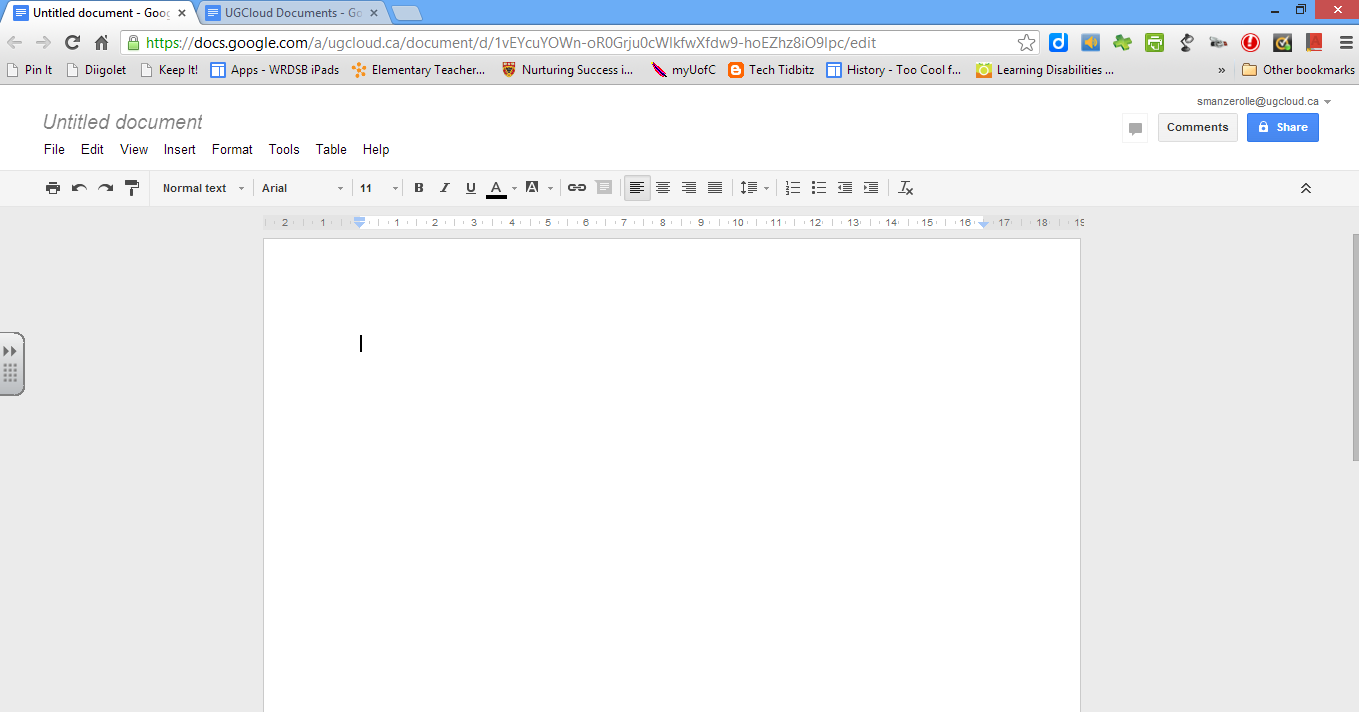
Once you have chosen to create a Google Document you will be brought to this screen.


To change the name of the document click on the ‘Untitled Document’ in the upper left hand corner and enter your chosen document name then click ‘ok’.  

Click anywhere in the white area and begin typing to create the letter, newsletter, etc.  

To change the font, simply highlight the text with a click and drag (or control and A to select all) then choose the desired font from the drop down menu next to ‘normal text’.  This is also how you can change the size of the font.  To underline, italicize, change the colour or boldface the text simply select the text as above and click on one of the following icons or use the drop down menu under ‘Format’.

To create numeric or dotted bullet points click on one of the following images:
or choose the type you wish from the ‘Format’ menu under ‘line styles’.

Creating a table in the document is easy to do by clicking on ‘Table’ then ‘Insert Table’.  You can hover over the correct number of rows and columns you would like in your table then click on the lower right hand corner of the table you would like created.  It will be inserted into the document where the cursor is being shown.  Additionally you can add or delete columns or rows by using the drop down menu under ‘Table’.

Students can email the document they have created to you (Select 'File' then 'Email as an Attachment') or simply ‘Share’ it with you for assessment or feedback.  By clicking on the Share box in the upper right hand corner they will be able to determine who can view, edit, comment or have ownership of the document.  Here they can also choose how private they would like the document to be (only persons with the link can access, private to only persons with the invitation or open to all of the world wide web).  

They may begin typing names (first or last) into the ‘add people’ bar to find email addresses to share the document with friends and teachers.

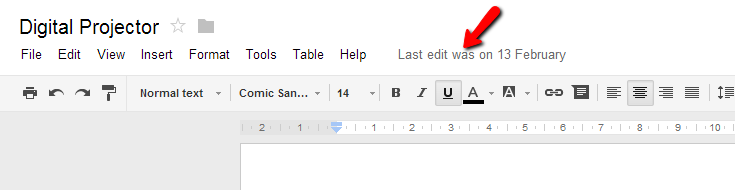
Finally, when a document has been shared with you by a student, all of the previous edits have been automatically saved on the Google Drive.  By clicking on the ‘Last edit saved on...’ link at the end of the tool bar you will open another window on the right hand side that will show all previous editions with the changes made in an alternate colour.  If more than one person has been collaborating on the project, each of their contributions will be displayed in separate colours.
 

I hope that this helps clarify the process of writing documents on the UGCloud and if there are any questions or if you would like additional clarification about the procedure, please feel free to contact me via email or on the blog.
Cheers,
Stacey

May 31, 2013 – More Fun With Google

Happy Friday Everyone,

This week I have a couple of extensions for the Google Chrome Web Browser that can hopefully make your life easier. 

YouTube Options
YouTube Options is an extension of the chrome browser which will eliminate all advertising from the videos you search out on YouTube giving you a white screen with the YouTube video being featured centre stage. 

To access this extension, search for ‘Chrome Web Store’ or go to https://chrome.google.com/webstore.  In the Chrome web store type ‘YouTube options’ in the search box on the upper left hand side of the page.  The image at the right will appear under extensions (fourth one down in the list). 

Click on the green ‘Add to Chrome’ bar and a disclaimer page will appear.  Now, when you search out a YouTube video and click play, it will automatically engage the extension and the screen will switch to a white background.  There are additional settings that you can access by clicking on the following 
 (found in the upper right corner in the address bar) then choose Tools, Extensions, YouTube Options and  Options.  Here you can set up YouTube to play different quality or viewing size, as well as set up auto play, or play in a loop.

This will help alleviate the fear of having an inappropriate advertisement pop up when showing a YouTube video in your class. 

Google Dictionary
This is another Google extension which can be added for use when browsing the internet on Google Chrome.  When searching online and students come across a word and they are unsure of the definition, they simply highlight the word (click and drag across the letters) then click on the red dictionary logo in the address bar.  A small window will pop up giving the web definition.  To access this extension, search for ‘Chrome Web Store’ or go to https://chrome.google.com/webstore.  In the Chrome web store type ‘Google Dictionary’ in the search box on the upper left hand side of the page.  The image at the right

 will appear under extensions (fourth one down in the list). Click on the green ‘Add to Chrome’ bar and a small red book will appear in the upper right hand corner of the web address bar.

I hope these are useful in your classrooms,
Cheers,
Stacey


Friday, 24 May 2013

May 24, 2013 - 'Smore' Ways To Spread The Word

Happy Friday Everyone,

According to the calendar, spring is finally here and although you wouldn’t know it from the snow and sleet we received last night, so too is camping season.   For me, no campfire is complete without the traditional gooey, chocolaty smores.    The tech tip I have for you this week is a different kind of smore however, an online smore 2.0.

The website, www.smore.com is a fantastic new (and free) flyer creating website which I happened to stumble upon recently and can see being used in many classroom applications.  After choosing the type of flyer you would like to design (event, news bulletin, class advertisement, etc.) you are prompted to fill in a title, subtitle and write a brief paragraph with other in key information.  You are given the option to add pictures, audio, video and events to your flyer.  Other customizable options include changing the theme, colours, font and background photo.When you are finished you can share by printing, emailing, tweeting, posting on Facebook, etc.  Of course, like most online services, upgrading is offered however I believe that the flyers look wonderful with the available free options.   Once complete flyers are set for public viewing as a default, however by clicking on flyer settings you can change this preference to private viewing only.  Here is a mock flyer I created in minutes advertising the Talent Show taking place at Hyland Heights next week...


I feel that this would be fantastic for students and schools to use to promote classroom and school-wide events to parents and the community.  Additionally students could use this application to illustrate their learning about a historical event (i.e. show the events of confederation) or country they are studying.  Personally, I think this is a wonderful way to create colourful and appealing class newsletters which can be emailed to parents or printed and sent home with students.  

I hope you find this new tool beneficial and if there are other ways you find to use it in the class and school-wide please feel free to share them with me. I'd love to hear from you.

Cheers,
Stacey

Friday, 17 May 2013

May 10, 2013 - Getting it 'Copy - Right!'


Hello Everyone,


Have you ever wanted to spruce up a presentation with music and images but are afraid of breaking copy write laws?  As teachers, it is our job to not only model, but to educate students on how to appropriately use online materials and images. Here are two ways to accomplish this difficult task.

Google Image Search
Finding images on Google is easy, but did you know you can filter the results to display only images which are ‘free to use or share’ or even ‘modify’?
1. Go to Google.com and click on images in the black bar at the top of the screen.
2. Type your keyword into the search bar  and press enter
3. When the initial images are displayed, you will also see an image of a gear on the upper right hand side of the page.  Click on the gear and select ‘Advanced Search’ from the drop down menu.
4. Here you will find many ways to filter your results, including size, type, and format.  At the very bottom of the page, you will see ‘Usage Rights’.  From the drop down menu, choose ‘free to use or share’, and click ‘Advanced Search’.
5. The results that will be displayed will “be labeled as public domain or carry a license that allows you to copy or redistribute its content” (Google, 2013)

Purple Planet Royalty Free Music
The website Purple Planet (http://www.purple-planet.com/) is a fantastic resource which offers free downloadable music for use in educational projects, YouTube videos, and web based projects in exchange for a link to their site.  On their home page, you will find blocks which link to various genres of music (kids, dramatic, jazz, blues, etc.).  Each genre has several different tracks which you can preview and/or download as an mp3. The tempo of number of beats per minute are also displayed with each track, which is also quite helpful when selecting music for a project.  The music is very pleasant and will get your toes tapping.

Now there is no excuse for having boring presentations. You can make them come alive with wonderful images and moving music.  I hope that you find these resources helpful, and please feel free to share them with your students.  

Hope everyone has a wonderful long weekend!
Stacey

Friday, 10 May 2013

May 10, 2013 - Annotating with VideoNotes

Hello Everyone,

Recently there has been a lot of discussion about ‘flipping the classroom’ and having students watch videos at home and complete homework (read: practice their skills) in class with the teacher’s assistance and guidance.  One challenge however to this new trend in education has been watching the video and preparing questions or writing the summary.


Videonotes (http://www.videonot.es/) however is a fun new tool that allows you view a video and take notes simultaneously.  When you visit the website and log in with your Google Cloud account, you can load any YouTube video on the left side of the screen and Videonotes supplies a notepad on the right side for quick note taking.  Additionally, once you have completed your writing, you can click on previous lines in the notes you’ve made, and the video will jump to that point; linking your thoughts and the images which occurred together.

Give it a try, and I’m sure you will be hooked!
Have a great weekend!
Stacey

Friday, 3 May 2013

May 3, 2013 – Google It – Twurdy Style!


Hello Everyone,

When in doubt, the world has turned to ‘Google’ to find the answer; and while I find that it is a fantastic web search tool, it’s not always beneficial for students.   Most student searches for research material will result in fast results, often in the millions of webpages, many of which are not anywhere near their reading level.  This is where Twurdy can help.  By going to http://www.twurdy.com/ to search for information, search results are filtered by reading level so students can best choose web information that they will be able to read and understand.


 Twurdy, a mash-up of ‘Too Wordy’ is a search engine where the results are average age or colour coded (pink to coral to red) from ‘Easier to Read’ to ‘Harder to Read’.  This way students can choose material which is geared to their own reading level.  The ‘Just Twurdy’ option, searches using medium speed and with medium results, while ‘Simple Twurdy’ produces fast but less accurate results. Finally, the ‘Twurdy with Pop’ includes looking up the popularity of words within the text. It has a slower speed however the results are more accurate. 
Give it a try with your students on their next research assignment.

Finally, with the removal of Corel and Word Perfect from the board computers, I would like to remind teachers of the website called Online Convert (www.online-convert.com). This website will convert anything to anything – a PDF document to an MP3 for students to listen to, a GIF image to a JPEG image, even convert a COREL file to a PDF or Word Document!! Yes, finally when you e-mail documents created at school in Word Perfect for editing at home, online-convert will change it into a PDF or Word file for you! Simply click on the web address and choose which application you need to convert.  Here is how I changed my word perfect document to a Microsoft Word document…

1.     Type in web address (www.online-convert.com) into the address bar

2.    Choose the type of file to convert – here I chose ‘Document Converter’ and from the drop down menu I picked ‘convert to DOC’ and clicked on it

3.     Where it says ‘Upload your document you want to convert to DOC:’ I clicked on ‘Choose File’ and found where on my computer I had stored the document (FYI - you can also add the web address of a webpage if you need it converted instead)

4.    Then click on ‘convert file’

     If there are documents that you plan on revising and using from year to year, I suggest you take some time and transfer them into an alternate format for use in the fall and later.

If there are any questions or if you would like me to stop in and lend a hand with either of these tools, please feel free to let me know.

Have a great sunny weekend!
Stacey